Topic 1 Introduction to JavaScript
What is JavaScript?
JavaScript is the programming language of the web. If HTML is the skeleton of a website and CSS is the clothes, then JavaScript is the brain and muscles — it makes everything move, respond, and think.
Kid-Friendly Analogy: Imagine a light switch in your house. HTML = the wall and the switch shape. CSS = the color and style of the switch. JavaScript = what actually makes the light turn ON or OFF when you press it!
What Can JavaScript Do?
- Show a popup message when you click a button
- Change text and colors on a page without reloading
- Check if your email or password is correct before sending
- Create countdown timers, clocks, and calculators
- Fetch live data from the internet (weather, news, prices)
- Build full mobile apps, games, and web applications
Fun Fact: JavaScript was created in just 10 days in 1995 by Brendan Eich at Netscape. Today it runs on over 98% of all websites in the world!
History of JavaScript
|
Year |
What Happened |
| 1995 |
Brendan Eich creates JavaScript in 10 days |
|
1996 |
Microsoft creates JScript (their own version) |
|
1997 |
ECMAScript standard created so all browsers agree |
|
2009 |
Node.js created — JS now works on servers too |
|
2015 |
ES6 — biggest update ever, modern JS begins |
| Today | JS is the most popular programming language in the world |
Your Very First JavaScript Program
You can write JavaScript directly inside a <script> tag in your HTML file:
<!DOCTYPE html>
<html>
<head>
<title>My First JS</title>
</head>
<body>
<h1>Hello World</h1>
<script>
// This is a comment — JavaScript ignores it
// Use console.log() to print messages
console.log(“Hello, World!”);
// alert() shows a popup on the page
alert(“Welcome to ThinkEdu!”);
</script>
</body>
</html>
Output In Console:
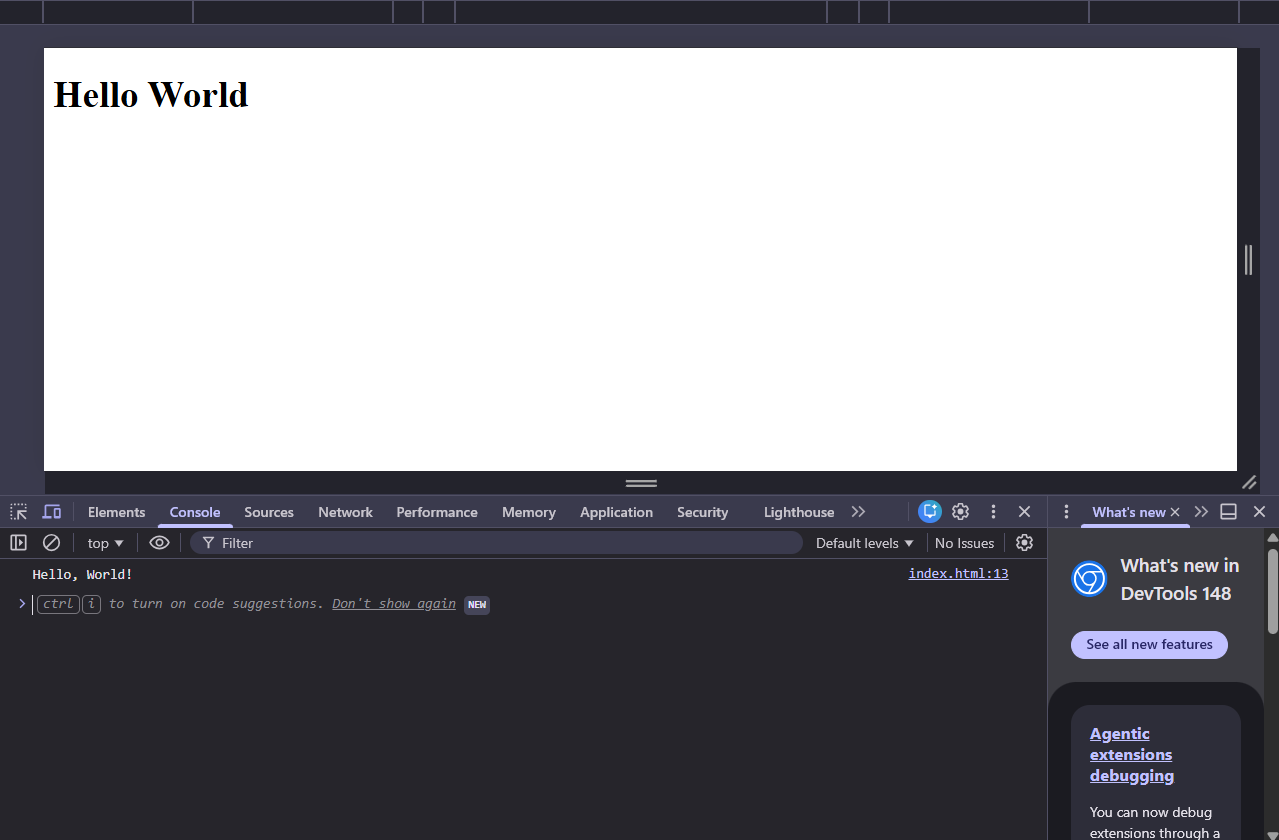
How to Open the Console: Press F12 in your browser → click the Console tab. This is where JavaScript shows messages. Every developer keeps it open while coding!
Linking an External JS File (Best Practice)
html
<!– In your HTML file –> <script src=”script.js”></script>
javascript
// In your script.js file console.log(“JS file is connected!”);
Always place your <script> tag just before the closing </body> tag. This ensures all HTML loads first before JavaScript runs.
Topic 2 Variables & Data Types
What is a Variable?
JavaScript variables are like boxes that store data.
Example:
let myName = “Tony”;
Means:
- let → create variable
- myName → variable name
- = → assign/store value
- “Tony” → value stored inside
Think:
myName = Tony
- let → Modern Variable (MOST USED)
Use let when:
- value may change later
- user score changes
- game level changes
- age updates
- counter increases
Example:
let myAge = 15;
Now:
myAge 📦 = 15
Later you can change it:
myAge = 16;
Now:
myAge 📦 = 16
No error.
Important Rule of let
You can:
- change value
- NOT redeclare in same block
Example:
let city = “Tokyo”;
city = “Osaka”; // allowed
BUT:
let city = “Seoul;”;
let city = “Busan”; // ERROR
const → Constant Variable
const means:
fixed value
Cannot change later.
Example:
const PI = 3.14;
Later:
PI = 3.15;
ERROR
Because constant cannot change.
Use const for:
- app name
- school name
- API URL
- fixed settings
- colors
- math constants
Example:
const SCHOOL_NAME = “ThinkEdu”;
Important Rule of const
You MUST give value immediately.
Correct:
const country = “India”;
Wrong:
const country; // ERROR
Because const needs value instantly.
Var → Old JavaScript Variable
var oldStyle = “avoid this“;
Var is old method.
Modern developers mostly use:
- let
- const
instead.
Why Var is avoided
Because it causes:
- confusing bugs
- scope problems
- accidental overwriting
Example:
var x = 10;
if (true) {
var x = 20;
}
console.log(x);
Output:
20
Why?
Because var ignores block scope.
let Fixes This
Example:
let x = 10;
if (true) {
let x = 20;
}
console.log(x);
Output:
10
Much safer.
What is “Scope”?
Scope means:
where variable can be used
Block Scope
Code inside { }
Example:
{
let a = 5;
}
Outside:
console.log(a);
ERROR
Because a only exists inside block.
Data Types in Your Code
1) String
Text inside quotes:
“Peter”
called string.
2) Number
15
3.14
called number.
3) = Means Assignment
let score = 100;
Means:
put 100 into score variable
NOT math equality.
4) ; Semicolon
Ends statement.
Example:
let age = 16;
JavaScript can work without it sometimes,
but professionals usually use it.
Comment in JavaScript
Single line comment:
// This is comment
Ignored by JavaScript.
Used for:
- explanation
- notes
- reminders
Three Ways to Create Variables
javascript
// let — can change the value later (USE THIS MOST)
let myName = “Tony”;
let myAge = 47;
myAge = 48;
// Changed it! That is fine with let
// const — value can NEVER change (use for fixed things)
const PI = 3.14;
const SCHOOL_NAME = “ThinkEdu”;
// PI = 3.15; //
This would cause an ERROR!
// var — old way,
avoid using in modern JavaScript var oldStyle = “avoid this”;
|
Keyword |
Can Change? | When to Use |
|
let |
Yes |
Most variables — names, scores, counts |
| const |
No |
Fixed values — PI, website URL, max score |
|
var |
Yes (old) |
Old code only — do not use in new projects |
Data Type – What Can variable store?
javascript
// String — text, always inside quotes let name = “ThinkEdu”;
let message = ‘Hello World’;
let greeting = `Hi ${name}!`;
// Template literal (backticks)
// Number — any number (no quotes needed!)
let age = 17; let price = 99.99; let temp = -5;
// Boolean — only true or false
let is LoggedIn = true;
let isPremium = false;
// null — empty on purpose
let selectedItem = null;
// undefined — not given a value yet
let futureValue; console.log(futureValue);
// undefined
// Array — list of items let fruits
= [“apple”, “mango”, “banana”];
// Object — grouped related data let student
= { name: “Rahul”, age: 15, grade: “A” };
typeof — Check What Type Something Is
javascript
console.log(typeof “hello”);—-> // “string”
console.log(typeof 42);—-> // “number”
console.log(typeof true);—-> // “boolean”
console.log(typeof undefined);—-> // “undefined”
console.log(typeof null);—-> // “object” (quirk in JS!)
console.log(typeof []); —-> // “object”
console.log(typeof {});—-> // “object”
console.log(typeof “hello”);—-> // “string”
console.log(typeof 42);—-> // “number”
console.log(typeof true);—-> // “boolean”
console.log(typeof undefined);—-> // “undefined”
console.log(typeof null);—-> // “object” (quirk in JS!)
console.log(typeof []);—-> //”object”
console.log(typeof {});—-> // “object”
Note: typeof null returns “object” — this is a famous bug in JavaScript that was never fixed.
Always use === null to check for null specifically.
Topic 3 Operators
Arithmetic Operators — Doing Maths
javascript
let a = 10;
let b = 3;
console.log
(a + b); // 13→  Addition console.log
(a - b);//7 →Subtraction console.log
(a * b);//30 → Multiplication console.log
(a / b)//3.33 → Division console.log
(a % b);//1 → ;Remainder (Modulo) console.log
(a ** b);//1000 → Power (10³)
// Shorthand operators let score = 0; score++;
// score is now 1 (add 1) score--;
// score is now 0 (subtract 1) score += 10;
// score is now 10 (add 10) score -= 3;
// score is now 7 (subtract 3) score *= 2;
// score is now 14 (multiply by 2) score /= 7;
// score is now 2 (divide by 7)
Comparison Operators — Comparing Values
javascript
let x = 5;
console.log(x == "5");   // true  → Equal value only
(loose — dangerous!)
console.log(x === "5");  // false → Equal value AND type
(strict  always use this)
console.log(x !== 3);    // true  → Not equal
console.log(x > 3);      // true  → Greater than
console.log(x < 3);      // false → Less than
console.log(x >= 5);     // true  → Greater than or equal
console.log(x <= 10);    // true  → Less than or equal
Always Use === NOT == Use === (triple equals) for comparing.
It checks BOTH the value AND the type.
5 == “5” is true (dangerous!).
5 === “5” is false (correct!).
This is one of the most important rules in JavaScript.
Logical Operators — Combining Conditions
javascript
let age = 16;
let hasTicket = true;
// AND — both conditions must be true
console.log(age >= 13 && hasTicket); // true
// OR — at least one condition must be true
console.log(age >= 18 || hasTicket); // true
// NOT — flips true to false, false to true
console.log(!hasTicket); // false
console.log(!false); // true
Kid-Friendly Analogy: AND = You need BOTH a ticket AND to be 13+ to enter. OR = You can enter if EITHER you have a ticket OR you are a VIP member. NOT = Flip it around — if something is true, NOT makes it false!
String Concatenation vs Template Literals
javascript
let name = “Rahul”;
let score = 95;
// Old way — concatenation (messy)
console.log(“Hello ” + name + “! Your score is ” + score + “/100.”);
// Modern way — template literals (clean )
console.log(`Hello ${name}! Your score is ${score}/100.`);
// Output: Hello Rahul! Your score is 95/100.
Topic 4 Strings & String Methods
Creating Strings
javascript
let single = ‘Hello’;
let double = “World”;
let backtick = `I am a template literal`;
// Template literals can span multiple lines
let multiLine = `
Dear Rahul,
Welcome to ThinkEdu!
Your course starts today.
// Template literals can include expressions
let a = 5, b = 3;
console.log(`${a} + ${b} = ${a + b}`); // 5 + 3 = 8
Essential String Methods
javascript
let text = ” Hello ThinkEdu “;
// Length — how many characters?
console.log(text.length); // 18
// Change case
console.log(text.toUpperCase()); // ” HELLO THINKEDU “
console.log(text.toLowerCase()); // ” hello thinkedu “
// Remove spaces from both ends
console.log(text.trim()); // “Hello ThinkEdu”
//check if text contains something
console.log(text.includes(“Think”)); // true
console.log(text.includes(“React”)); // false
// Find position of text
console.log(text.indexOf(“Hello”)); // 2
// Replace text
console.log(text.replace(“Hello”, “Hi”)); // ” Hi ThinkEdu “
// Split into an array
let csv = “apple,mango,banana”;
console.log(csv.split(“,”)); // [“apple”, “mango”, “banana”]
// Get part of a string
let word = “JavaScript”;
console.log(word.slice(0, 4)); // “Java”
console.log(word.slice(4)); // “Script”
console.log(word.slice(-6)); // “Script” (from end)
// Repeat a string
console.log(“Ha”.repeat(3)); // “HaHaHa”
// Check start and end
console.log(word.startsWith(“Java”)); // true
console.log(word.endsWith(“Script”)); // true
// Pad a string
console.log(“5”.padStart(3, “0”)); // “005”
Strings are Immutable: String methods do NOT change the original string — they return a new one. Always save the result: let clean = text.trim();
Topic 5 Arrays
What is an Array?
An array is like a numbered shelf where you can store multiple items in order. Instead of creating 10 separate variables for 10 students, you create one array.
Kid-Friendly Analogy: Imagine a shelf with numbered slots: slot 0, slot 1, slot 2… In JavaScript, arrays always start counting from 0, not 1! So the first item is at position [0], second at [1], third at [2].
javascript
// Creating arrays
let fruits = [“apple”, “mango”, “banana”];
let numbers = [1, 2, 3, 4, 5];
let mixed = [“Rahul”, 17, true, null]; // any types!
// Accessing items (starts at 0!)
console.log(fruits[0]); // “apple”
console.log(fruits[1]); // “mango”
console.log(fruits[2]); // “banana”
// Last item
console.log(fruits[fruits.length – 1]); // “banana”
// Changing an item
fruits[1] = “papaya”;
console.log(fruits); // [“apple”, “papaya”, “banana”]
// How many items?
console.log(fruits.length); // 3
Essential Array Methods
javascript
let nums = [3, 1, 4, 1, 5, 9, 2, 6];
// Add and remove items
nums.push(7); // Add to END
nums.pop(); // Remove from END (returns removed item)
nums.unshift(0); // Add to START
nums.shift(); // Remove from START (returns removed item)
// Find items
console.log(nums.includes(9)); // true
console.log(nums.indexOf(4)); // 2 (position number, -1 if not found)
// Sort and reverse
nums.sort((a, b) => a – b); // [1, 1, 2, 3, 4, 5, 6, 9] ascending
nums.reverse(); // [9, 6, 5, 4, 3, 2, 1, 1] reversed
// Join array into a string
console.log(nums.join(“, “)); // “9, 6, 5, 4, 3, 2, 1, 1”
// Slice — copy part of array (original not changed)
let part = nums.slice(1, 4); // items at index 1, 2, 3
// Splice — remove/insert items (changes original!)
nums.splice(2, 1); // Remove 1 item at index 2
nums.splice(1, 0, 99, 88); // Insert 99 and 88 at index 1
Powerful Array Methods (forEach, map, filter, find)
javascript
let students = [
{ name: “Rahul”, score: 90 },
{ name: “Priya”, score: 75 },
{ name: “Arjun”, score: 85 },
{ name: “Meera”, score: 60 },
];
// forEach — loop through every item
students.forEach(s => console.log(s.name));
// Rahul, Priya, Arjun, Meera
// map — create a NEW array by transforming each item
let names = students.map(s => s.name);
console.log(names); // [“Rahul”, “Priya”, “Arjun”, “Meera”]
let doubled = [1,2,3].map(n => n * 2);
console.log(doubled); // [2, 4, 6]
// filter — keep only items that pass a test
let topStudents = students.filter(s => s.score >= 80);
console.log(topStudents); // Rahul and Arjun
// find — get the FIRST item that passes the test
let found = students.find(s => s.name === “Priya”);
console.log(found.score); // 75
// reduce — combine all items into one value
let total = students.reduce((sum, s) => sum + s.score, 0);
console.log(total); // 310
console.log(total / students.length); // 77.5 (average)
// some — is at least ONE item true?
console.log(students.some(s => s.score >= 90)); // true
// every — are ALL items true?
console.log(students.every(s => s.score >= 60)); // true
Topic 6 Conditional Statements
if / else — Making Decisions
An if statement is how JavaScript decides what to do. It asks a question — if the answer is true, one block runs. If false, another block runs.
Kid-Friendly Analogy: Think of a traffic light. if the light is GREEN → you drive. else if the light is YELLOW → you slow down. else (it must be red) → you stop. JavaScript if/else works exactly like this!
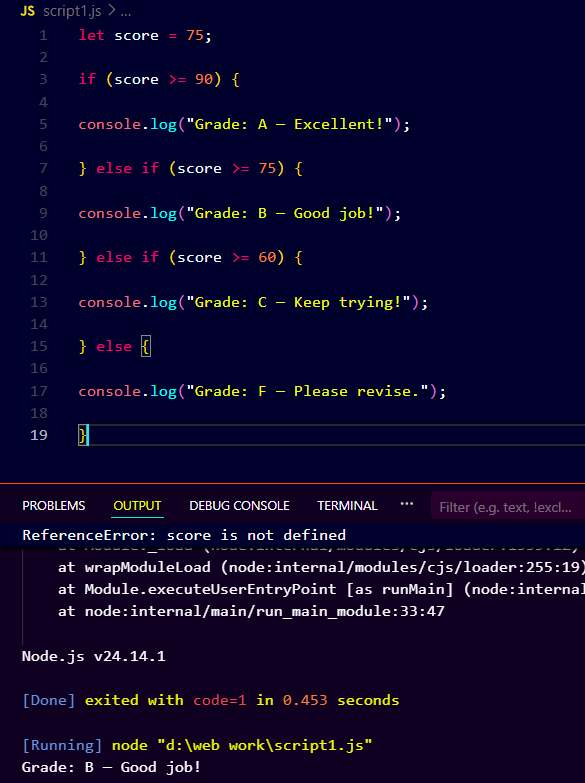
javascript
let score = 75;
if (score >= 90) {
console.log(“Grade: A — Excellent!”);
} else if (score >= 75) {
console.log(“Grade: B — Good job!”);
} else if (score >= 60) {
console.log(“Grade: C — Keep trying!”);
} else {
console.log(“Grade: F — Please revise.”);
}
// Output:
Ternary Operator — One-Line if/else
javascript
// Format: condition ? valueIfTrue : valueIfFalse
let age = 18;
let status = age >= 18 ? “Adult” : “Minor”;
console.log(status); // “Adult”
let marks = 45;
let result = marks >= 50 ? “Pass” : “Fail”;
console.log(result); // “Fail”
// Nested ternary (use carefully!)
let grade = score >= 90 ? “A” : score >= 75 ? “B” : score >= 60 ? “C” : “F”;
switch — Checking Many Specific Values
javascript
let day = “Monday”;
switch (day) {
case “Monday”:
console.log(“Start of the week!”); break;
case “Friday”:
console.log(“Almost weekend!”); break;
case “Saturday”:
case “Sunday”:
console.log(“Weekend!”); break;
default:
console.log(“Midweek hustle!”); break;
}
Always Write break: Without break, JavaScript keeps running the NEXT case too. This is called “fall-through” and causes bugs. Always add break after each case!