Topic 1 Introduction to HTML
What is HTML?
HTML stands for Hyper Text Markup Language. It is the foundation of every webpage on the internet.
Think of HTML as the skeleton of a website. Just like bones give structure to the human body, HTML gives structure to webpages.
Every website you visit — Google, YouTube, Instagram, Amazon — uses HTML.
Breaking Down the Name
Hyper → Connects webpages using links
Text → Content written on the webpage
Markup → Uses tags to structure content
Language → Rules the browser understands
What Does HTML Do?
HTML tells the browser:
- where headings go
- where paragraphs appear
- where images display
- where buttons are placed
- where links go
- where forms exist
Without HTML, websites cannot exist.
Your First HTML Example
<!DOCTYPE html>
   <html>
   <head>
     <title>My First Website</title>
   </head>
   <body>
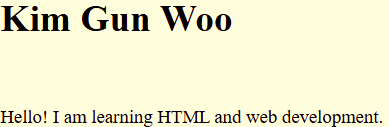
     <h1>Kim Gun Woo</h1>
    <p>Hello! I am learning HTML and web development.</p>
    </body>
</html>
Output:
Important Concept
HTML uses tags like:
- h1 for headings
- p for paragraphs
- img for images
- a for links
Tags tell the browser what each content means.
History of HTML
HTML was invented by Tim Berners-Lee in 1991.
He created HTML so scientists could share documents online.
Timeline
1991 → HTML created
1995 → HTML 2.0 released
1999 → HTML 4.01 released
2014 → HTML5 officially launched
HTML5 is the modern version we use today.
How Websites Work
Step 1 — User Opens Website
You type a URL like:
google.com
into your browser.
Step 2 — Browser Sends Request
The browser asks the server for website files.
Step 3 — Server Responds
The server sends:
- HTML → structure
- CSS → design
- JavaScript → interactivity
Step 4 — Browser Builds Website
The browser combines everything and displays the final webpage.
Frontend vs Backend
Frontend
Frontend is everything users can see.
Examples:
- text
- buttons
- menus
- images
- forms
Frontend Technologies:
- HTML
- CSS
- JavaScript
Backend
Backend works behind the scenes.
Examples:
- login systems
- databases
- payments
- user accounts
Backend Technologies:
- PHP
- Python
- Node.js
- MySQL
Role of HTML in Web Development
HTML creates:
- page structure
- headings
- paragraphs
- images
- forms
- tables
- navigation menus
- links
Easy Analogy
HTML = Skeleton
CSS = Skin & Veins
JavaScript = Brain & Nervos System
Video-html
Topic 2 Setting Up Environment
Installing VS Code
VS Code is the most popular code editor for web developers.
Why Use VS Code?
- free
- fast
- beginner friendly
- supports extensions
- color highlights code
Installation Steps
Step 1
Open:
Click Here For Installing VS Code
Step 2
Download VS Code for your operating system.
Step 3
Install it using default settings.
Step 4
Open VS Code.
Best Extensions
Live Server
Automatically opens your website in browser.
Prettier
Formats code professionally.
Auto Rename Tag
Automatically updates closing tags.
HTML CSS Support
Gives smart suggestions.
How Can You Install Extensions?
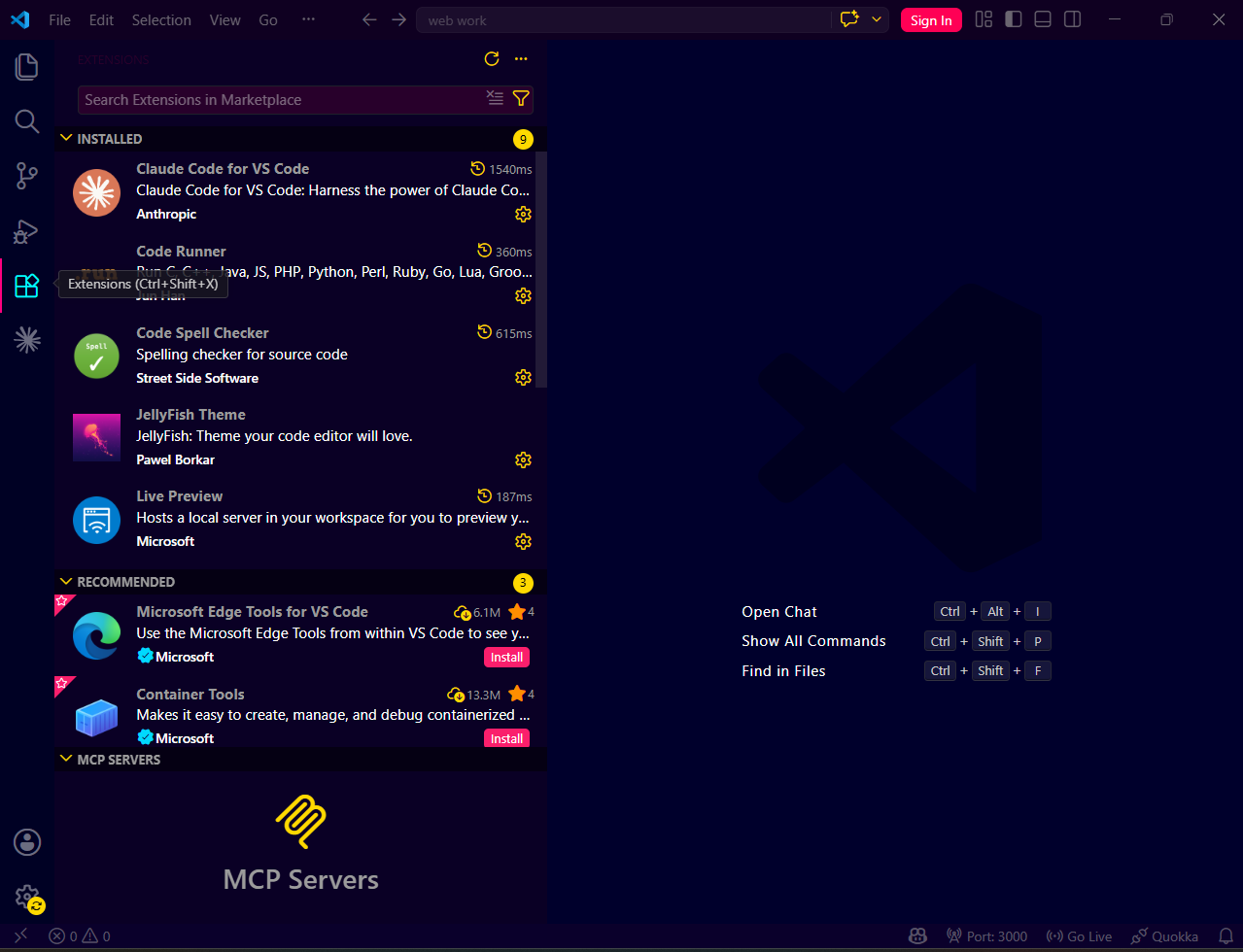
- You Can See A panel in The Image.
- Click On The Search Bar And Search It.
Creating Your First Project Folder
Create a folder named:
My Website
Inside it keep:
- HTML files
- CSS files
- images
- JavaScript files
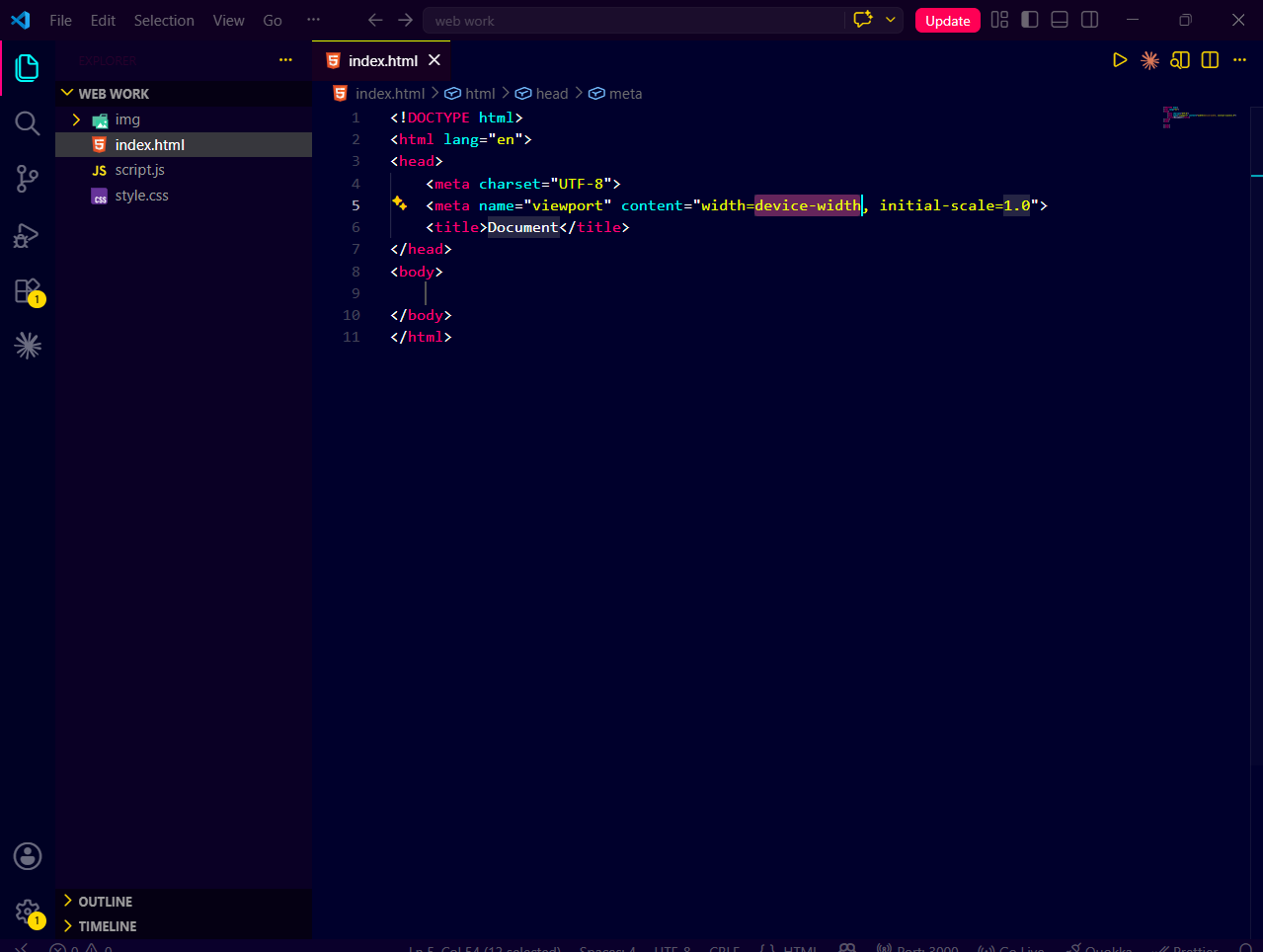
Creating First HTML File
Create:
index.html
This is the main homepage file.
After All This It Will Looks Like This:
Video
Topic 3 HTML Document Structure
Every HTML page follows a structure.
Main Parts of HTML Structure
DOCTYPE <DOCTYPE html>
Tells browser the page uses HTML5.
HTML Tag <html>
Wraps the entire webpage.
HEAD Section <head>
Contains:
- title
- meta tags
- CSS links
TITLE <title>
Appears on browser tab.
BODY <body>
Contains everything visible on webpage.
Examples:
- text
- images
- buttons
- forms
How Tags Work
Every tag has:
Opening tag
Closing tag
Example:
Heading starts with opening tag and ends with closing tag.
<h1>HELLO</h1>
video
Topic 4 Headings and Paragraphs
Headings
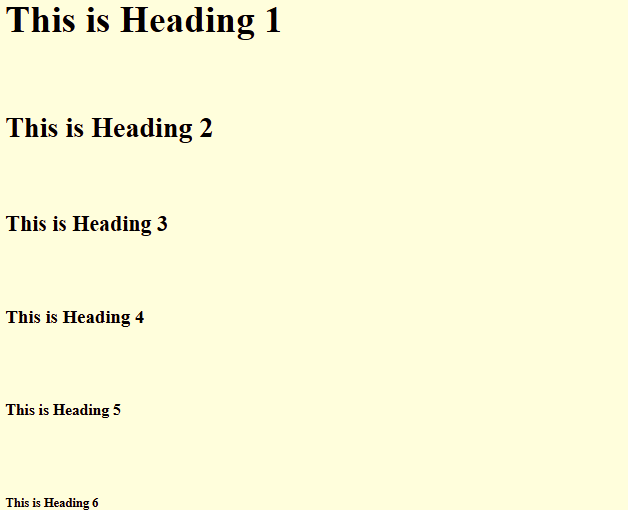
HTML has 6 heading levels.
H1 <h1>
Main title of webpage.
H2 <h2>
Major sections.
H3 <h3>
Sub-sections.
For Example:
<html>
      <head>
       <title>Headings Practice</title>
      </head>
          <body>
        <h1>This is Heading 1</h1>
        <h2>This is Heading 2</h2>
        <h3>This is Heading 3</h3>
        <h4>This is Heading 4</h4>
        <h5>This is Heading 5</h5>
        <h6>This is Heading 6</h6>
          </body>
</html>
Output:
Paragraphs <p>
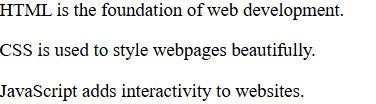
Paragraph tag creates text blocks.
Browsers automatically add spacing between paragraphs.
For Example:
<!DOCTYPE html>
    <html>
      <head>
    <title>Paragraph Practice</title>
      </head>
  <body>
<p>HTML is the foundation of web development.</p>
<p>CSS is used to style webpages beautifully.</p>
<p>JavaScript adds interactivity to websites.</p>
  </body>
     </html>
Output:
Line Break <br>
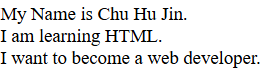
Creates new line without new paragraph.
For Example:
<!DOCTYPE html>
     <html>
       <head>
        <title>Line Break Practice</title>
       </head>
      <body>
<p>My Name is Chu Hu Jin.<br>
I am learning HTML.<br>
I want to become a web developer.</p>
      </body>
   </html>
Output:
Horizontal Rule <hr>
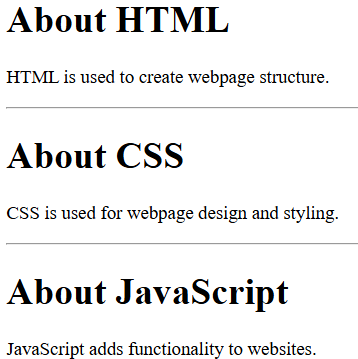
Creates a horizontal divider line.
Used to separate sections.
For Example:
<!DOCTYPE html>
   <html>
      <head>
       <title>Horizontal Rule Practice</title>
     </head>
    <body>
     <h1>About HTML</h1>
      <p>HTML is used to create webpage structure.</p>
        <hr>
      <h1>About CSS</h1>
     <p>CSS is used for webpage design and styling.</p>
        <hr>
      <h1>About JavaScript</h1>
    <p>JavaScript adds functionality to websites.</p>
    </body>
  </html>
Output:
Topic 5 Text Formatting Tags
Bold Text <b>
Makes text bold.
For Example:
<!DOCTYPE html>
   <html>
    <body>
  <p>This is <b>bold text</b>.</p>
   </body>
  </html>
Output:
This Is bold text.
Strong Text
Shows important text.
For Example:
<!DOCTYPE html>
   <html>
      <body>
        <p>This is <strong>important text</strong>.</p>
     </body>
   </html>
Output:
This is important text.
Italic Text
Makes text italic.
For Example:
<!DOCTYPE html>
    <html>
      <body>
      <p>This is <i>italic text</i>.</p>
      </body>
    </html>
Output:
This is italic text.
Emphasized Text
Shows emphasized text.
For Example:
<!DOCTYPE html>
  <html>
   <body>
    <p>This is <em>emphasized text</em>.</p>
  </body>
  </html>
Output:
This is emphasized text.
Underline
Underlines text.
For Example:
<!DOCTYPE html>
   <html>
    <body>
     <p>This is <u>underlined text</u>.</p>
   </body>
  </html>
Output:
This is underlined text.
Mark
Highlights text like a marker.
For Example:
<!DOCTYPE html>
   <html>
     <body>
      <p>This is <mark>highlighted text</mark>.</p>
     </body>
    </html>
Output:
This is highlighted text.
Topic 6 Links and Navigation
What Are Links?
Links connect webpages together.
External Links
Open other websites.
For Example:
<!DOCTYPE html>
   <html>
      <body>
    <a href="https://www.google.com">
Visit Google
   </a>
     </body>
   </html>
Output:
Internal Links
Connect pages inside your own website.
For Example:
<!DOCTYPE html>
   <html>
    <body>
   <a href="about.html">About Page</a>
   </body>
  </html>
Output:
Email Links
Open email app automatically.
For Example:
<!DOCTYPE html>
   <html>
    <body>
   <a href="mailto:hello@gmail.com">
Send Email
   </a>
   </body>
  </html>
Output:
Phone Links
Open phone dialer on mobile devices.
For Example:
<!DOCTYPE html>
  <html>
   <body>
 <a href="tel:+919876543210">
Call Now
 </a>
   </body>
 </html>
Output:
Anchor Links
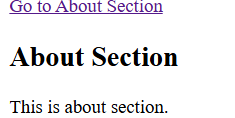
Jump to sections on same page.
For Example:
<!DOCTYPE html>
    <html>
     <body>
  <a href="#about">Go to About Section</a>
  <h2 id="about">About Section</h2>
  <p>This is about section.</p>
    </body>
  </html>
Output:
Topic 7 Images in HTML
Image Tag
Used to display images.
For Example:
<!DOCTYPE html>
   <html>
    <body>
   <img src="img/images1.jpg">
   </body>
  </html>
Output:

Alt Text
Describes image for accessibility and SEO.
Always use alt text.
For Example:
<!DOCTYPE html>
<html>
<body>
<img src="nature.jpg" alt="Beautiful Nature">
</body>
</html>
Output:
Width and Height
Control image size.
For Example:
<!DOCTYPE html>
    <html>
      <body>
       <img src="img/123.jpg" width="300" height="200">
      </body>
    </html>
Output:

Topic 8 Lists in HTML
Ordered List
Numbered list.
Used for steps.
For Example:
<!DOCTYPE html>
   <html>
     <body>
  <ol>
   <li>Wake Up</li>
     <li>Study HTML</li>
      <li>Practice Coding</li>
 </ol>
     </body>
     </html>
Output:
- Wake Up
- Study HTML
- Practice Coding
Unordered List
Bullet point list.
Used when order doesn’t matter.
For Example:
<!DOCTYPE html>
   <html>
   <body>
 <ul>
  <li>HTML</li>
   <li>CSS</li>
    <li>JavaScript</li>
  </ul>
   </body>
    </html>
Output:
- HTML
- CSS
- JavaScript
Nested Lists
Lists inside another list.
For Example:
<!DOCTYPE html>
  <html>
   <body>
  <ul>
   <li>Frontend
  <ul>
   <li>HTML</li>
  <li>CSS</li>
  </ul>
 </li>
  </ul>
  </body>
 </html>
Output:
- Frontend
- HTML
- CSS
Topic 9 Tables in HTML
Tables display data in rows and columns.
Important Table Tags
Table
Creates table.
For Example:
<!DOCTYPE html>
    <html>
       <body>
    <table border="1">
  <tr>
 <th>Name</th>
  <th>Marks</th>
  </tr>
   <tr>
  <td>Tony</td>
    <td>90</td>
  </tr>
   <tr>
  <td>Steve</td>
   <td>85</td>
   </tr>
  </table>
   </body>
  </html>
Output:
| Name | Marks |
|---|---|
| Tony | 90 |
| Steve | 85 |
TR
Creates row.
For Example:
<!DOCTYPE html>
  <html>
   <body>
  <table border="1">
  <tr>
 <td>Peter</td>
  <td>90</td>
  </tr>
  </table>
   </body>
   </html>
Output:
| Peter | 90 |
TH
Creates heading cell.
For Example:
<!DOCTYPE html>
  <html>
   <body>
  <table border="1">
  <tr>
  <th>Name</th>
  <th>Marks</th>
  </tr>
 </table>
  </body>
  </html>
Output:
| Name | Marks |
|---|
TD
Creates data cell.
For Example:
<!DOCTYPE html>
  <html>
   <body>
  <table border="1">
  <tr>
 <td>Wanda</td>
 <td>85</td>
 </tr>
  </table>
 </body>
   </html>
Output:
| Wanda | 85 |
Uses of Tables
- student marksheets
- price lists
- schedules
- comparison charts
Topic 10 Forms in HTML
Forms collect user information.
Examples:
- login forms
- registration forms
- contact forms
Input Types
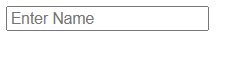
Text Input
For names and text.
For Example:
<!DOCTYPE html>
  <html>
   <body>
  <input type="text" placeholder="Enter Name">
  </body>
 </html>
Output:
Email Input
Validates email format.
For Example:
<!DOCTYPE html>
   <html>
    <body>
  <input type="email" placeholder="Enter Email">
   </body>
  </html>
Output:

Password Input
Hides characters.
For Example:
<!DOCTYPE html>
   <html>
    <body>
  <input type="password" placeholder="Password">
   </body>
  </html>
Output:

Number Input
Accepts numbers only.
For Example:
<!DOCTYPE html>
 <html>
  <body>
 <input type="number">
  </body>
 </html>
Output:

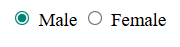
Radio Buttons
Choose one option.
For Example:
<!DOCTYPE html>
 <html>
  <body>
  <input type="radio" name="gender"> Male
   <input type="radio" name="gender"> Female
   </body>
    </html>
Output:
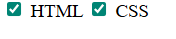
Checkboxes
Choose multiple options.
For Example:
<!DOCTYPE html>
 <html>
  <body>
    <input type="checkbox"> HTML
   <input type="checkbox"> CSS
  </body>
</html>
Output:
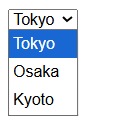
Dropdown Menus
Select options from list.
For Example:
<!DOCTYPE html>
  <html>
   <body>
  <select>
  <option>Tokyo</option>
   <option>Osaka</option>
  <option>Kyoto</option>
  </select>
 </body>
</html>
Output:
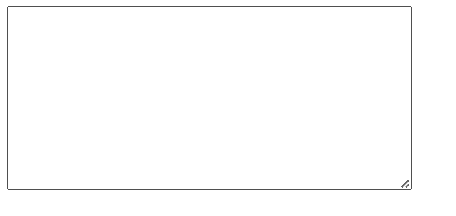
Text area
Used for large messages.
For Example:
<!DOCTYPE html>
 <html>
  <body>
  <textarea rows="5" cols="30"></textarea>
  </body>
 </html>
Output:
Topic 11 Semantic HTML
Semantic HTML gives meaning to webpage structure.
Important Semantic Tags
Header
Top section of page.
For Example:
<header>
 <h1>ThinkEdu</h1>
</header>
Output:
ThinkEdu
Nav
Navigation menu.
For Example:
<nav>
 <a href="#">Home</a>
  <a href="#">Courses</a>
</nav>
Output:
Section
Groups related content.
For Example:
<main>
 <h2>Main Content</h2>
</main>
Output:
Main Content
Article
Independent content.
For Example:
<article>
 <h2>HTML Tutorial</h2>
   <p>Learn HTML easily.</p>
</article>
Output:
HTML Tutorial
Learn HTML easily.
Footer
Bottom section.
For Example:
<footer>
 <p>© 2025 ThinkEdu</p>
</footer>
Output:
© 2025 ThinkEdu
Benefits of Semantic HTML
- better SEO
- accessibility
- cleaner code
- easier maintenance
Module 12 Multimedia in HTML
Audio
Adds music or sound.
For Example:
<audio controls>
 <source src="music.mp3" type="audio/mpeg">
</audio>
Output:

Video
Adds videos to webpage.
For Example:
Output:

iFrame
Embeds content from other websites.
For Example:
 <iframe width="400"height="250"
src="https://www.youtube.com/embed/
https://www.youtube.com/
watch?v=-RkNjT33zqk&list=RD-RkNjT33zqk&start_radio=1">
</iframe>
Output:

Topic 13 HTML Entities & Symbols
Entities display special characters.
Examples:
- copyright symbol
- currency symbols
- less than sign
- greater than sign
Common Symbols
© Copyright
₹ Indian Rupee
™ Trademark
€ Euro
© Copyright
For Example:
<p>© 2025 ThinkEdu</p>
Output:
© 2025 ThinkEdu
₹ Indian Rupee
For Example:
<p>Course Price: ₹999</p>
Output:
₹999
™ Trademark
For Example:
<p>ThinkEdu ™</p>
Output:
ThinkEdu ™
€ Euro
For Example:
<p>ThinkEdu €</p>
Output:
ThinkEdu €
Module 14 Meta Tags & SEO Basics
Meta tags provide information about webpage.
Important Meta Tags
Charset
Supports languages.
For Example:
<meta charset="UTF-8">
Output:
Supports all languages.
Viewport
Makes website responsive on mobile.
For Example:
<meta name="viewport"
content="width=device-width, initial-scale=1.0">
Output:
Responsive mobile website.
Description
Used by Google search results.
For Example:
<meta name="description"
content="Learn HTML from beginner to advanced">
Output:
SEO description for Google.
Keywords
Describes webpage topic.
For Example:
<meta name="keywords"
content="HTML,CSS,JavaScript">
Output:
Search keywords added.
SEO Basics
Good SEO helps websites rank higher on Google.
For Example:
Output:
Module 15 Accessibility Basics
Accessibility helps disabled users use websites.
Important Accessibility Rules
- always use alt text
- proper heading order
- accessible forms
- keyboard navigation
- Proper Labels
Alt Text
For Example:
<img src="Good-Boy-2025.jpg" alt="Boxer">
Output:

Proper Labels
For Example:
<label for=”email”>Email</label>
<input type=”email” id=”email”>
Output:
Module 16 HTML Best Practices
Write Clean Code
Use proper indentation and spacing.
For Example:
<!DOCTYPE html>
 <html>
  <head>
 <title>My Website</title>
 </head>

<body>

 <h1>Hello</h1>
  </body>
 </html>
Use Semantic Tags
Use correct tags for correct purpose.
For Example:
<header>Header</header>
<main>Main Content</main>
<footer>Footer</footer>
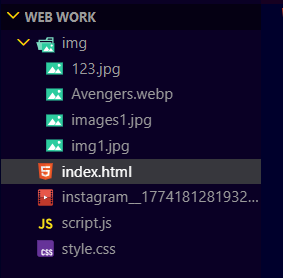
Organize Files Properly
Keep folders clean:
- images folder
- css folder
- js folder
For Example:
Validate HTML
Check errors using W3C Validator.
Topic17 Real HTML Projects
Project 1 — Portfolio Website
Build personal portfolio website.
Includes:
- about section
- skills
- contact form
Project 2 — Blog Website
Create blog webpage with:
- articles
- images
- navigation
Project 3 — Restaurant Website
Build restaurant webpage with:
- menu
- reservation form
- contact section
Final Project
Build a complete multi-page website.
Pages:
- Home
- About
- Services
- Blog
- Contact
“Every expert web developer once started with a single HTML tag. By completing this HTML journey, you have taken your first real step into the world of web development. Keep practicing the exercises provided in every lesson, build small projects regularly, and never stop experimenting — because great websites are built by people who keep learning and creating every day.” ~