Topic 7 Loops
What is a Loop?
A loop runs the same code multiple times automatically. Without loops, printing numbers 1 to 100 would need 100 separate lines. With a loop — just 3 lines!
Kid-Friendly Analogy: Imagine your teacher asks you to write “I will pay attention in class” 50 times. That is painful! A loop is like having a robot do all 50 lines for you automatically.
for Loop — When You Know How Many Times
javascript
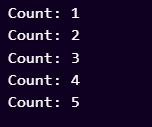
// for (start; condition; step)
for (let i = 1; i <= 5; i++) {
console.log(“Count: ” + i);
}
Output:
// Loop through an array
let fruits = [“apple”, “mango”, “banana”];
for (let i = 0; i < fruits.length; i++) {
console.log(fruits[i]);
}
Output:

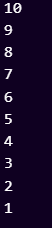
// Count DOWN
for (let i = 10; i >= 1; i–) {
console.log(i);
}
Output:
while Loop — When You Don’t Know How Many Times
javascript
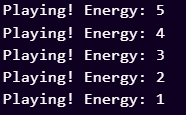
let energy = 5;
while (energy > 0) {
console.log(“Playing! Energy: ” + energy);
energy–; // Must reduce energy or it loops forever!
}
console.log(“Game Over!”);
Output:
Warning — Infinite Loop! If your condition never becomes false, the loop runs forever and crashes the browser. Always make sure the condition will eventually be false!
for…of — Easiest Way to Loop Arrays
javascript
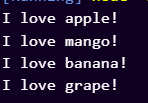
let fruits = [“apple”, “mango”, “banana”, “grape”];
for (let fruit of fruits) {
console.log(“I love ” + fruit + “!”);
}
Output:
for…in — Looping Through Object Keys
javascript
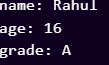
let student = { name: “Rahul”, age: 16, grade: “A” };
for (let key in student) {
console.log(`${key}: ${student[key]}`);
}
Output:
break & continue
javascript
// break — stop the loop completely
for (let i = 1; i <= 10; i++) {
if (i === 5) break; // stop at 5
console.log(i);
}
Output:

// continue — skip this round, keep going
for (let i = 1; i <= 5; i++) {
if (i === 3) continue; // skip 3
console.log(i);
}
Output:

Topic 8 Functions
What is a Function?
A function is a reusable block of code with a name. You define it once, then call it by name whenever you need it — as many times as you want.
Kid-Friendly Analogy: A function is like a recipe. You write the recipe once (define the function). Whenever you want to cook it, you just say the recipe name (call the function). You can cook it 100 times without rewriting the steps!
Declaring and Calling Functions
javascript
// Step 1 — Define the function
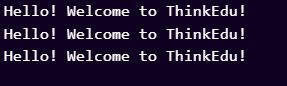
function greet() {
console.log(“Hello! Welcome to ThinkEdu!”);
}
// Step 2 — Call it (use it)
greet(); // Hello! Welcome to ThinkEdu!
greet(); // Works again!
greet(); // And again! No rewriting needed.
Output:
Parameters & Arguments
javascript
// Parameters are the “blanks” in the recipe
function greetUser(name, course) {
console.log(`Hi ${name}! Welcome to the ${course} course!`);
}
// Arguments — the actual values you pass when calling
greetUser(“Rahul”, “JavaScript”); // Hi Rahul! Welcome to the JavaScript course!
greetUser(“Priya”, “CSS”); // Hi Priya! Welcome to the CSS course!
greetUser(“Arjun”, “HTML”); // Hi Arjun! Welcome to the HTML course!
Output:

// Default parameters — value used if nothing is passed
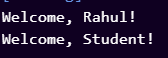
function welcome(name = “Student”) {
console.log(`Welcome, ${name}!`);
}
welcome(“Rahul”); // Welcome, Rahul!
welcome(); // Welcome, Student!
Output:
Return Values
javascript
function add(a, b) {
return a + b; // Sends the result back to wherever it was called from
}
let result = add(5, 3);
console.log(result); // 8
console.log(add(10, 20)); // 30
console.log(add(7, 7) * 2); // 28 — use in expressions!
Output:

// Function stops when return is hit
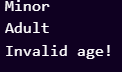
function checkAge(age) {
if (age < 0) return “Invalid age!”;
if (age < 18) return “Minor”;
return “Adult”;
}
console.log(checkAge(15)); // Minor
console.log(checkAge(25)); // Adult
console.log(checkAge(-1)); // Invalid age!
Output:
Arrow Functions — Modern Shorthand
javascript
// Regular function declaration
function square(n) {
return n * n;
}
// Arrow function — same thing, shorter!
const square = (n) => n * n;
// Single parameter — no parentheses needed
const double = n => n * 2;
// No parameters
const sayHi = () => console.log(“Hi!”);
// Multiple lines — need curly braces and return
const greetUser = (name, course) => {
let msg = `Hello ${name}! You are learning ${course}.`;
return msg;
};
// Using them
console.log(square(5)); // 25
console.log(double(7)); // 14
sayHi(); // Hi!
Output:
Hello Rahul! You are learning JS.
Topic 9 Objects
What is an Object?
An object groups related information and actions together under one name. Instead of separate variables for a student’s name, age, and grade, you put them all inside one object.
Kid-Friendly Analogy: An object is like a contact card in your phone. One card has: Name, Phone, Email, Address — all about ONE person. In JavaScript, an object is exactly that — a collection of facts about one thing.
Creating and Using Objects
javascript
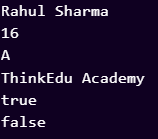
let student = {
name: “Rahul Sharma”,
age: 16,
grade: “A”,
school: “ThinkEdu Academy”,
isPremium: true,
};
// Accessing properties — dot notation (most common)
console.log(student.name); // “Rahul Sharma”
console.log(student.age); // 16
// Bracket notation — useful when key is a variable
console.log(student[“grade”]); // “A”
let key = “school”;
console.log(student[key]); // “ThinkEdu Academy”
// Changing a value
student.age = 17;
// Adding a new property
student.email = “rahul@email.com”;
// Deleting a property
delete student.isPremium;
// Check if property exists
console.log(“name” in student); // true
console.log(“phone” in student); // false
Output:
Methods — Functions Inside Objects
javascript
let calculator = {
value: 0,
add(n) { this.value += n; },
subtract(n) { this.value -= n; },
multiply(n) { this.value *= n; },
reset() { this.value = 0; },
result() { return this.value; },
};
calculator.add(10);
calculator.add(5);
calculator.subtract(3);
calculator.multiply(2);
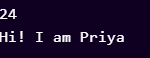
console.log(calculator.result()); // 24
// this — refers to the current object
let person = {
name: “Priya”,
greet() {
console.log(`Hi! I am ${this.name}`);
}
};
person.greet(); // Hi! I am Priya
Output:
Array of Objects (Very Common Pattern)
javascript
let students = [
{ name: “Rahul”, age: 16, grade: “A” },
{ name: “Priya”, age: 15, grade: “B” },
{ name: “Arjun”, age: 17, grade: “A” },
];
// Access each student
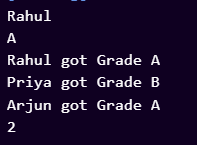
console.log(students[0].name); // Rahul
console.log(students[2].grade); // A
// Loop through all students
students.forEach(student => {
console.log(`${student.name} got Grade ${student.grade}`);
});
// Filter top students
let topStudents = students.filter(s => s.grade === “A”);
console.log(topStudents.length); // 2
Output:
Topic 10 DOM Manipulation
What is the DOM?
DOM stands for Document Object Model. When a browser loads your HTML, it creates a “map” of all elements as JavaScript objects. You can then use JavaScript to change any element on the page — instantly, without reloading
Kid-Friendly Analogy: The DOM is like a family tree of your HTML. The document is the great-grandparent. html is its child. head and body are siblings. JavaScript can reach any family member and change them!
Selecting HTML Elements
javascript
// By ID — returns one element
const heading = document.getElementById(“main-title”);
// By class — returns HTMLCollection
const cards = document.getElementsByClassName(“card”);
// By tag — returns HTMLCollection
const allLinks = document.getElementsByTagName(“a”);
// Modern way — querySelector (uses CSS selectors)
const btn = document.querySelector(“#submit-btn”); // by ID
const firstCard = document.querySelector(“.card”); // FIRST .card only
const navLink = document.querySelector(“nav a”); // first a inside nav
// querySelectorAll — returns ALL matches as NodeList
const allCards = document.querySelectorAll(“.card”);
allCards.forEach(card => console.log(card.textContent));
Changing Content and Style
javascript
const title = document.querySelector(“h1”);
// Change text (safe — no HTML)
title.textContent = “New Heading!”;
// Change with HTML (be careful!)
title.innerHTML = “<span>Bold</span> Heading”;
// Change CSS styles
title.style.color = “blue”;
title.style.fontSize = “48px”;
title.style.background = “yellow”;
title.style.display = “none”; // hide
title.style.display = “block”; // show
// Add / remove / toggle CSS classes (RECOMMENDED way)
title.classList.add(“active”);
title.classList.remove(“hidden”);
title.classList.toggle(“dark-mode”); // add if not there, remove if there
console.log(title.classList.contains(“active”)); // true or false
// Change attributes
const img = document.querySelector(“img”);
img.setAttribute(“src”, “new-image.jpg”);
img.setAttribute(“alt”, “New description”);
console.log(img.getAttribute(“src”));
Creating New Elements
javascript
// Create a new div element
const newCard = document.createElement(“div”);
newCard.classList.add(“card”);
newCard.textContent = “I am a brand new card!”;
newCard.style.background = “lightblue”;
// Add it to the page — at the END of body
document.body.appendChild(newCard);
// Insert before a specific element
const container = document.querySelector(“.container”);
const firstChild = container.firstElementChild;
container.insertBefore(newCard, firstChild);
// Modern way — insertAdjacentHTML
container.insertAdjacentHTML(“beforeend”, “<p>New paragraph!</p>”);
// Remove an element
const old = document.querySelector(“.old-card”);
old.remove();
// Replace an element
const newEl = document.createElement(“h2”);
newEl.textContent = “Replaced!”;
old.replaceWith(newEl);
Topic 11 Events
What is an Event?
An event is something that happens on the page — a click, a key press, mouse moving, a form submitted. JavaScript can “listen” for these events and run code when they happen.
Kid-Friendly Analogy: Events are like a doorbell. The doorbell (event listener) waits silently. When someone presses the button (event happens), it rings (runs your function). Your code is that ringing action!
addEventListener — The Right Way
javascript
const btn = document.querySelector(“#myBtn”);
// Format: element.addEventListener(“eventType”, callbackFunction)
btn.addEventListener(“click”, function() {
console.log(“Button was clicked!”);
btn.textContent = “Clicked!”;
btn.style.background = “green”;
});
// Arrow function version
btn.addEventListener(“click”, () => {
alert(“You clicked me!”);
});
Common Event Types
|
Event |
When It Fires |
Example Use |
|
click |
User clicks an element |
Buttons, cards, links |
|
dblclick |
User double-clicks |
Edit mode toggle |
|
mouseover |
Mouse enters element |
Show tooltip |
|
mouseout |
Mouse leaves element |
Hide tooltip |
|
keydown |
A key is pressed |
Detect Enter, shortcuts |
|
keyup |
A key is released |
Search as you type |
|
input |
Input value changes |
Live character counter |
|
change |
Input loses focus with new value |
Dropdown selections |
|
submit |
Form is submitted |
Validate and send data |
|
load |
Page finishes loading |
Initialize the app |
|
scroll |
User scrolls page |
Sticky header, lazy load |
Practical Event Examples
javascript
// Click — toggle visibility
const menuBtn = document.querySelector(“#menu-btn”);
const dropdown = document.querySelector(“#dropdown”);
menuBtn.addEventListener(“click”, () => {
dropdown.classList.toggle(“show”);
});
// keydown — detect Enter key
const searchInput = document.querySelector(“#search”);
searchInput.addEventListener(“keydown”, (e) => {
if (e.key === “Enter”) {
console.log(“Searching for:”, searchInput.value);
}
});
// input — live character counter
const textarea = document.querySelector(“#message”);
const counter = document.querySelector(“#count”);
textarea.addEventListener(“input”, () => {
let remaining = 280 – textarea.value.length;
counter.textContent = `${remaining} characters remaining`;
counter.style.color = remaining < 20 ? “red” : “gray”;
});
// submit — form validation
const form = document.querySelector(“#myForm”);
form.addEventListener(“submit”, (e) => {
e.preventDefault(); // Stop form from refreshing page
let email = document.querySelector(“#email”).value;
if (!email.includes(“@”)) {
alert(“Please enter a valid email!”);
return;
}
console.log(“Form submitted:”, email);
});
// Event delegation — handle clicks on dynamic elements
document.querySelector(“#task-list”).addEventListener(“click”, (e) => {
if (e.target.classList.contains(“task-item”)) {
e.target.classList.toggle(“done”);
}
});
Topic 12 ES6+ Modern JavaScript
Why ES6?
ES6 (released 2015) was the biggest update to JavaScript ever. It makes code shorter, cleaner, and easier to read. All modern JavaScript uses these features..
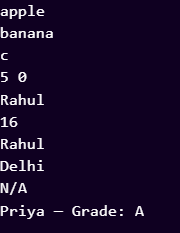
Destructuring — Unpack Values Elegantly
javascript
// Array Destructuring
let [first, second, third] = [“apple”, “mango”, “banana”];
console.log(first); // apple
console.log(third); // banana
// Skip items with commas
let [, , last] = [“a”, “b”, “c”];
console.log(last); // c
// With default values
let [x = 0, y = 0] = [5];
console.log(x, y); // 5, 0
// Object Destructuring
let student = { name: “Rahul”, age: 16, city: “Delhi” };
let { name, age } = student;
console.log(name); // Rahul
console.log(age); // 16
// Rename while destructuring
let { name: studentName, city: hometown } = student;
console.log(studentName); // Rahul
console.log(hometown); // Delhi
// Default values
let { grade = “N/A” } = student;
console.log(grade); // N/A (not in object, so default is used)
// Destructuring in function parameters
function showStudent({ name, grade = “N/A” }) {
console.log(`${name} — Grade: ${grade}`);
}
Output:
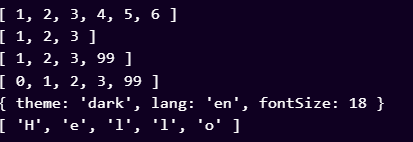
Spread Operator … — Expand Items
javascript
// Combine arrays
let a = [1, 2, 3];
let b = [4, 5, 6];
let all = […a, …b];
console.log(all); // [1, 2, 3, 4, 5, 6]
// Copy an array (not a reference!)
let copy = […a];
copy.push(99);
console.log(a); // [1, 2, 3] — original unchanged!
console.log(copy); // [1, 2, 3, 99]
// Insert items into array
let withExtra = [0, …a, 99];
console.log(withExtra); // [0, 1, 2, 3, 99]
// Merge objects
let defaults = { theme: “light”, lang: “en”, fontSize: 16 };
let userPrefs = { theme: “dark”, fontSize: 18 };
let settings = { …defaults, …userPrefs };
console.log(settings);
// { theme: “dark”, lang: “en”, fontSize: 18 }
// userPrefs values OVERRIDE defaults!
// Spread string into array of characters
let chars = […”Hello”];
console.log(chars); // [“H”,”e”,”l”,”l”,”o”]
Output:
Rest Parameters … — Collect Extra Arguments
javascript
function sum(…numbers) {
return numbers.reduce((total, n) => total + n, 0);
}
console.log(sum(1, 2, 3)); // 6
console.log(sum(10, 20, 30, 40, 50)); // 150
Output:

// Mix regular and rest parameters
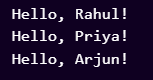
function greetMany(greeting, …names) {
names.forEach(name => console.log(`${greeting}, ${name}!`));
}
greetMany(“Hello”, “Rahul”, “Priya”, “Arjun”);
// Hello, Rahul!
// Hello, Priya!
// Hello, Arjun!
Output:
Optional Chaining ?. — Safe Navigation
javascript
let user = {
name: “Rahul”,
profile: {
avatar: “pic.jpg”
}
};
// Old way — crashes if profile is undefined!
// let avatar = user.profile.avatar; // error if profile doesn’t exist
// New safe way — returns undefined instead of error
let avatar = user?.profile?.avatar;
let phone = user?.contact?.phone; // undefined, not error!
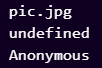
console.log(avatar); // “pic.jpg”
console.log(phone); // undefined
// Works with methods too
let name = user?.getName?.(); // undefined if getName doesn’t exist
// Nullish Coalescing — use default if null/undefined
let displayName = user?.nickname ?? “Anonymous”;
Output:
MODULE 13 — Fetch API & JSON
What is an API?
An API (Application Programming Interface) is like a waiter at a restaurant. You (your JavaScript) tell the waiter what you want (a request). The waiter goes to the kitchen (server), gets the data, and brings it back to you (the response).
Kid-Friendly Analogy: You do not go into the kitchen yourself. You just ask the waiter (API) politely, and they bring you the food (data). Weather apps, YouTube, Instagram — they ALL use APIs to get their data.
JSON — JavaScript Object Notation
JSON is the format APIs use to send data. It looks like a JavaScript object but is stored as text.
javascript
// JSON string coming from a server
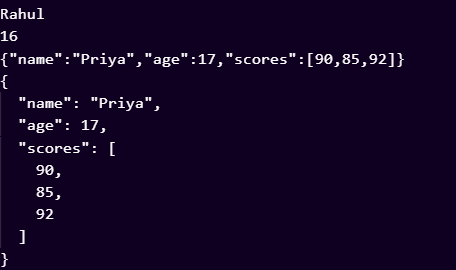
let jsonString = ‘{ “name”: “Rahul”, “age”: 16, “grade”: “A” }’;
// Parse JSON string into a JavaScript object
let student = JSON.parse(jsonString);
console.log(student.name); // Rahul
console.log(student.age); // 16
// Convert JS object into JSON string (to send data to a server)
let obj = { name: “Priya”, age: 17, scores: [90, 85, 92] };
let json = JSON.stringify(obj);
console.log(json);
// ‘{“name”:”Priya”,”age”:17,”scores”:[90,85,92]}’
// Pretty print JSON
Output:
fetch() with async / await
javascript
// async/await makes asynchronous code look synchronous (much easier to read!)
async function getUsers() {
try {
// Step 1: fetch the data (await pauses until done)
const response = await fetch(“https://jsonplaceholder.typicode.com/users”);
// Step 2: check if the request worked
if (!response.ok) {
throw new Error(`HTTP Error: ${response.status}`);
}
// Step 3: convert to JavaScript object
const users = await response.json();
// Step 4: use the data
users.forEach(user => {
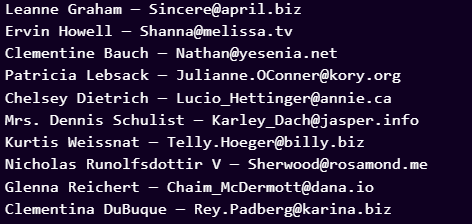
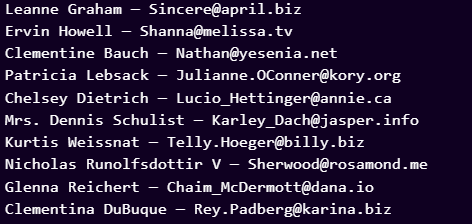
console.log(`${user.name} — ${user.email}`);
});
return users;
} catch (error) {
console.error(“Fetch failed:”, error.message);
}
}
// Call the function
getUsers();
Output:
POST Request — Sending Data to a Server
javascript
async function createPost(title, body) {
try {
const response = await fetch(“https://jsonplaceholder.typicode.com/posts”, {
method: “POST”,
headers: { “Content-Type”: “application/json” },
body: JSON.stringify({ title, body, userId: 1 }),
});
const newPost = await response.json();
console.log(“Created post with ID:”, newPost.id);
return newPost;
} catch (error) {
console.error(“Error:”, error);
}
}
createPost(“My First Post”, “This is the post content!”);
Output:
Free Practice API: Use https://jsonplaceholder.typicode.com — a free fake API with users, posts, todos, and comments. Perfect for beginners!
Topic 14 Local Storage
What is Local Storage?
Local Storage lets you save data in the browser that persists even after the page is closed or refreshed. Perfect for saving user preferences, dark mode settings, or to-do items.
Kid-Friendly Analogy: Local Storage is like a notebook kept inside the browser. You write things in it. Even if you close the tab and reopen it, your notes are still there! The browser remembers.
Basic Operations
javascript
// Save data — always stored as text
localStorage.setItem(“username”, “Rahul”);
localStorage.setItem(“theme”, “dark”);
localStorage.setItem(“score”, “95”);
// Read data
let name = localStorage.getItem(“username”);
let theme = localStorage.getItem(“theme”);
console.log(name, theme); // Rahul dark
// If key doesn’t exist, returns null
let nothing = localStorage.getItem(“nonexistent”);
console.log(nothing); // null
// Delete one item
localStorage.removeItem(“theme”);
// Delete everything
localStorage.clear();
// How many items are stored?
console.log(localStorage.length); // 2
Storing Objects — Must Use JSON
javascript
// Direct storage fails for objects!
let user = { name: “Priya”, score: 95, isPremium: true };
// localStorage.setItem(“user”, user); // Stores “[object Object]” — WRONG!
// CORRECT — convert to JSON string first
localStorage.setItem(“user”, JSON.stringify(user));
// Reading it back — parse from JSON
let saved = localStorage.getItem(“user”);
let parsed = JSON.parse(saved);
console.log(parsed.name); // Priya
console.log(parsed.score); // 95
console.log(parsed.isPremium); // true
// Helper functions to make life easier
function saveToStorage(key, value) {
localStorage.setItem(key, JSON.stringify(value));
}
function getFromStorage(key, defaultValue = null) {
let item = localStorage.getItem(key);
return item ? JSON.parse(item) : defaultValue;
}
// Use them
saveToStorage(“tasks”, [“Buy groceries”, “Study JS”, “Exercise”]);
let tasks = getFromStorage(“tasks”, []);
console.log(tasks); // [“Buy groceries”, “Study JS”, “Exercise”]
Practical — Dark Mode Toggle with Memory
javascript
const toggleBtn = document.querySelector(“#dark-toggle”);
const body = document.body;
// Load saved preference on page open
let savedTheme = localStorage.getItem(“theme”) || “light”;
body.classList.add(savedTheme);
updateBtn(savedTheme);
toggleBtn.addEventListener(“click”, () => {
body.classList.toggle(“dark”);
let current = body.classList.contains(“dark”) ? “dark” : “light”;
localStorage.setItem(“theme”, current);
updateBtn(current);
});
function updateBtn(theme) {
toggleBtn.textContent = theme === “dark” ? “☀️ Light Mode” : “🌙 Dark Mode”;
}
Topic 15 Error Handling
Why Handle Errors?
Errors happen in every program. A good developer expects errors and writes code to handle them gracefully — showing a helpful message instead of breaking the entire app.
Kid-Friendly Analogy: Imagine a vending machine. If you put in a coin and it gets stuck, a good machine shows “Please try again” instead of exploding. try/catch is like building that safety system into your code.
try / catch / finally
javascript
try {
// Code that MIGHT throw an error
let data = JSON.parse(“{ bad json }”);
console.log(data);
} catch (error) {
// Runs ONLY if there was an error
console.log(“Caught an error!”);
con
sole.log(“Message:”, error.message);
console.log(“Type:”, error.name);
} finally {
// ALWAYS runs — error or not
console.log(“Done! This always runs.”);
}
Ouput:

throw — Creating Your Own Errors
javascript
function divide(a, b) {
if (typeof a !== “number” || typeof b !== “number”) {
throw new TypeError(“Both arguments must be numbers!”);
}
if (b === 0) {
throw new Error(“Cannot divide by zero!”);
}
return a / b;
}
try {
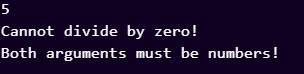
console.log(divide(10, 2)); // 5
console.log(divide(10, 0)); // throws Error
} catch (e) {
console.log(e.message); // Cannot divide by zero!
}
try {
console.log(divide(“ten”, 2)); // throws TypeError
} catch (e) {
console.log(e.message); // Both arguments must be numbers!
}
Output:
Debugging Tips
- Open DevTools with F12 → Console tab to see all errors
- Use console.log() everywhere to check values step by step
- Read the error message — it tells you the file and line number
- Use breakpoints in DevTools (click line numbers) to pause and inspect
- Check for typos — most bugs are simple spelling mistakes
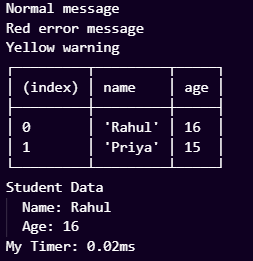
javascript
// Helpful console methods
console.log(“Normal message”);
console.error(“Red error message”);
console.warn(“Yellow warning”);
console.table([{name:”Rahul”,age:16},{name:”Priya”,age:15}]);
console.group(“Student Data”);
console.log(“Name: Rahul”);
console.log(“Age: 16”);
console.groupEnd();
console.time(“My Timer”);
// … some code …
console.timeEnd(“My Timer”); // Shows how long it took
Output: